

Overview
Ask the Genie is an AI-powered enterprise assistant that connects Salesforce, HubSpot, SharePoint, Gmail, Outlook, Slack, Microsoft Teams, and other business systems into a unified knowledge platform.
This guide explains the steps to connect a hosted Salesforce MCP Server with Ask the Genie using PKCE authentication — no Client Secret required. With Salesforce connected, users can:
- Search and retrieve information from Salesforce using natural language.
- Ask questions across documents, emails, chats, meetings, and CRM systems.
- Receive AI-generated answers with source citations.
- Organize content into workspaces for teams and departments.
- Access business knowledge from multiple connected systems in a single interface.
Prerequisites
Before connecting Salesforce to Ask the Genie, ensure that:
- You have an active Ask the Genie account.
- You have a Salesforce account with administrator access.
- You have permission to create External Client Apps in Salesforce Setup.
- You know which environment you are connecting — Sandbox or Production.
- You have access to the Ask the Genie administration portal.
If you are using a Sandbox environment, your login URL will be https://test.salesforce.com.
For Production, use https://login.salesforce.com.
Create the External Client App
Follow these steps in Salesforce Setup to create and configure the External Client App that authorizes Ask the Genie to access your Salesforce data.
Open the Salesforce Setup page
Open your browser and go to your Salesforce login URL. Enter your Username and Password and click Log In. Make sure you are logged into the correct environment — either Sandbox or Production — depending on your project requirements.
After successful login, click the gear icon (⚙️) at the top-right corner and select Setup to open the Salesforce Setup Home page.
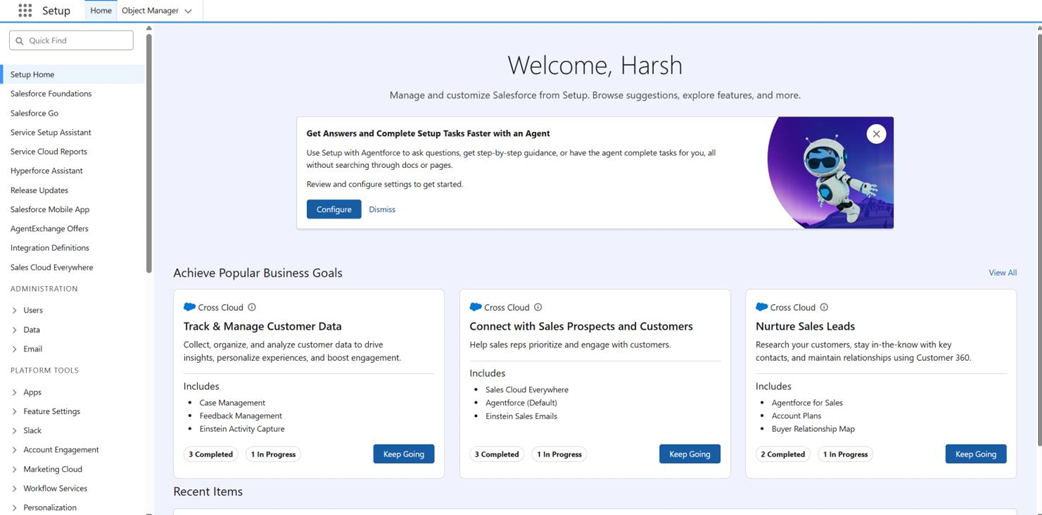
Navigate to External Client Apps
In the Salesforce Setup page, use the Quick Find search box on the left side and type External. Under the Apps section, click External Client Apps, then click External Client App Manager from the submenu. You will now see the list of all existing External Client Apps in your org.
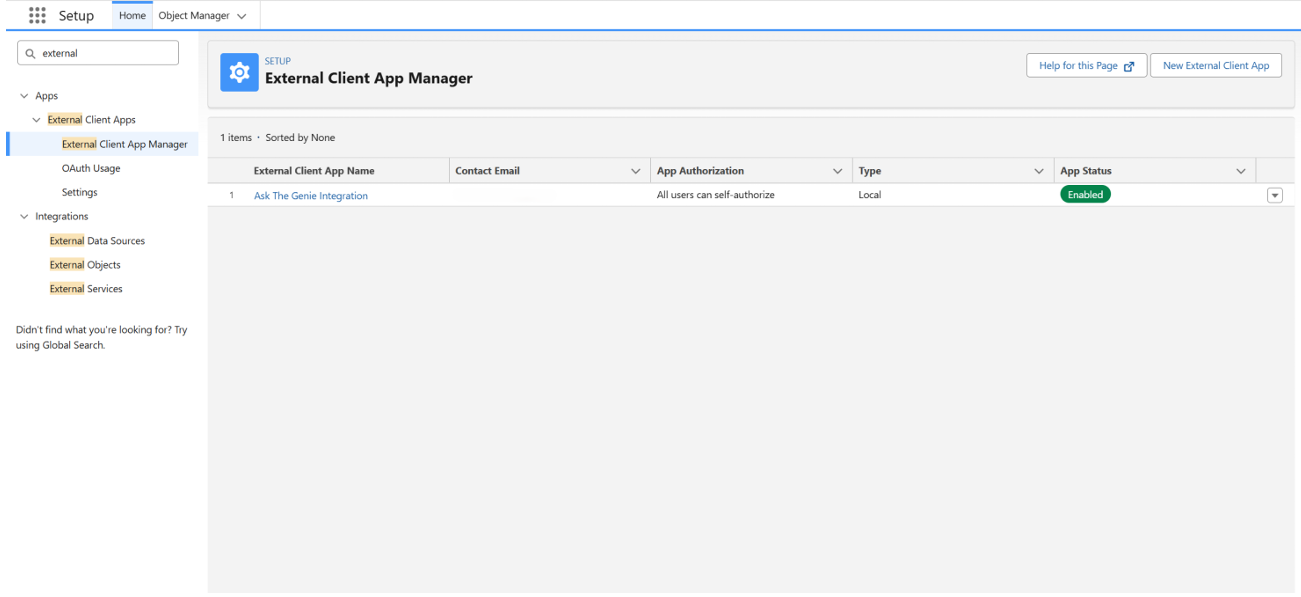
Create a new External Client App
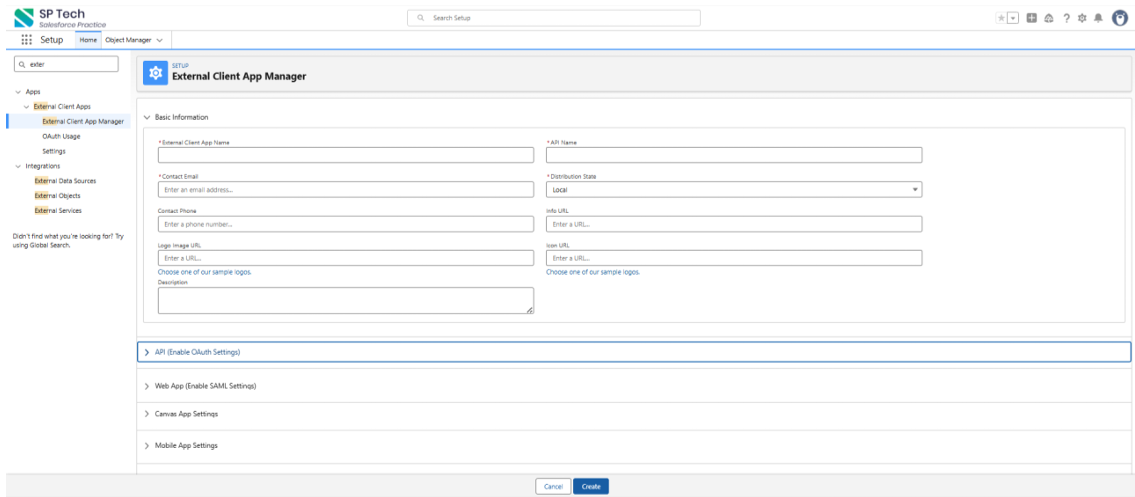
Click the New External Client App button (top-right corner). A new configuration page will open. Fill in the Basic Information section:
- External Client App Name — Enter your application name. Example: Salesforce MCP Server.
- API Name — Auto-generated after entering the app name.
- Contact Email — Enter your email address.
- Distribution State — Keep it as Local.
- Info URL (optional) — Add your project or company website URL if available.
- Description — Write a short description. Example: “This application is used to connect Salesforce with the MCP Server and Ask the Genie.”
After filling the Basic Information section, scroll down to open API (Enable OAuth Settings). Here you will configure OAuth, PKCE, the Callback URL, and API permissions in the next step.
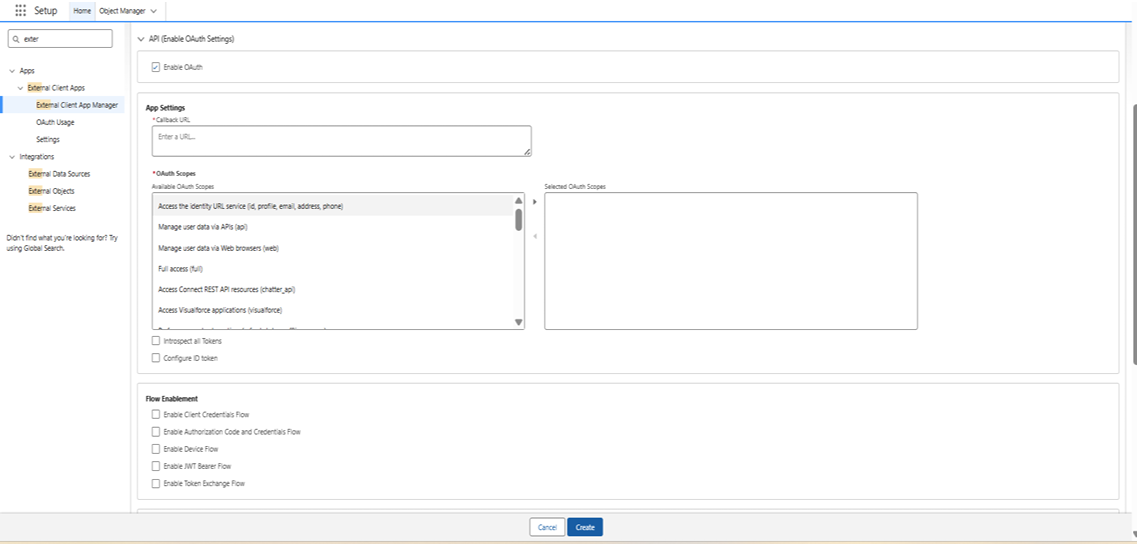
Configure API (Enable OAuth Settings)
4.1 — Enable OAuth
Check Enable OAuth.
4.2 — Set the Callback URL
In the Callback URL field, enter the URL based on the application you are connecting with:
| Application | Callback URL |
|---|---|
| Ask the Genie | https://api.askthegenie.ai/api/v1/mcp-connectors/salesforce/callback |
| Local Development | http://localhost:3000/callback |
Since we are connecting with Ask the Genie, enter this URL:
https://api.askthegenie.ai/api/v1/mcp-connectors/salesforce/callback
This URL is fixed and the same for all users connecting Salesforce with Ask the Genie.
It must be exact — no trailing slash, no extra spaces. Only change this URL if you are connecting to a different application other than Ask the Genie.
4.3 — Add OAuth Scopes
From the Available OAuth Scopes list on the left, select and move scopes to Selected OAuth Scopes (right side) by clicking the arrow (→).
Mandatory scopes — always add these for every project:
- Manage user data via APIs (
api) - Perform requests at any time (
refresh_token,offline_access) - Access unique user identifiers (
openid)
Optional scopes — add based on your project needs:
- Access the identity URL service (
id, profile, email, address, phone) — add if your app needs to identify the logged-in user. - Access Salesforce hosted MCP servers (
mcp_api) — add if you are using a Salesforce Hosted MCP Server. - Access all Data Cloud API resources (
cdp_api) — add only if you are using Salesforce Data Cloud.
4.4 — Leave these unchecked
- Introspect all Tokens
- Configure ID token
Configure Security Settings
Under the Security section, choose one of the following approaches based on your project requirement.
Option A — PKCE Authentication (recommended, no Client Secret needed)
| Setting | Value |
|---|---|
| Require secret for Web Server Flow | Leave unchecked |
| Require secret for Refresh Token Flow | Leave unchecked |
| Require Proof Key for Code Exchange (PKCE) extension | Check ✅ |
| Enable Refresh Token Rotation | Leave unchecked |
| Issue JSON Web Token (JWT)-based access tokens for named users | Keep checked ✅ |
| Limit Idle Refresh Token Time-to-Live (TTL) to 30 Days | Leave unchecked |
| Enforce Refresh Token IP Allowlist | Leave unchecked |
Option B — Client Secret Authentication (traditional approach)
| Setting | Value |
|---|---|
| Require secret for Web Server Flow | Check ✅ |
| Require secret for Refresh Token Flow | Check ✅ |
| Require Proof Key for Code Exchange (PKCE) extension | Leave unchecked |
| Enable Refresh Token Rotation | Leave unchecked |
| Issue JSON Web Token (JWT)-based access tokens for named users | Keep checked ✅ |
| Limit Idle Refresh Token Time-to-Live (TTL) to 30 Days | Leave unchecked |
| Enforce Refresh Token IP Allowlist | Leave unchecked |
Save the External Client App
After completing all the settings above, scroll to the bottom of the page and click the Create button to save your External Client App. Salesforce will create the app and redirect you to the app detail page.
On the detail page, you will find your Consumer Key (Client ID) — copy and save this; you will need it when connecting to Ask the Genie.
Activate the MCP Server
Find the Salesforce MCP Server
- In the Salesforce Setup page, use the Quick Find search box and type MCP.
- Click MCP Servers from the search results.
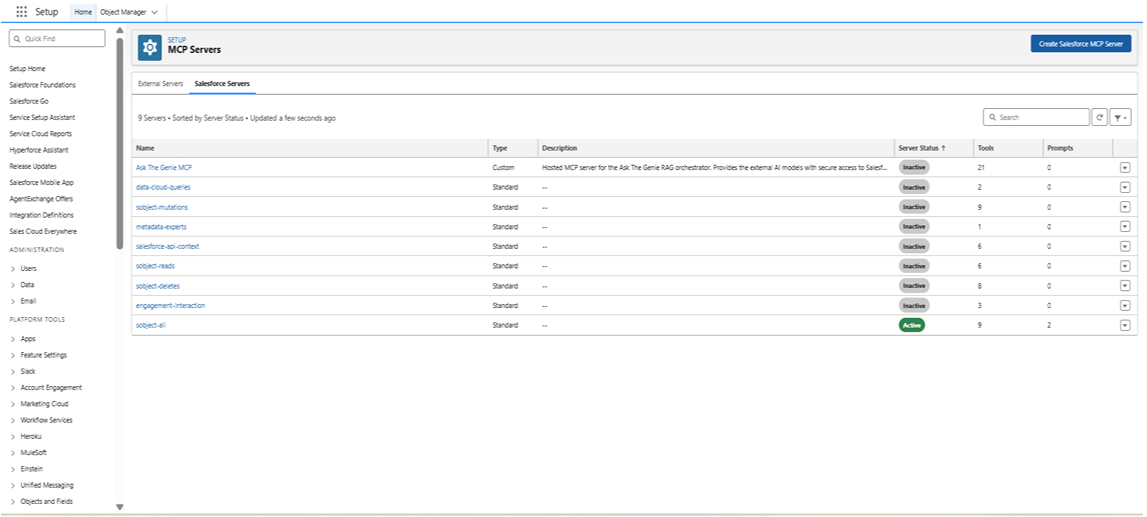
- On the MCP Servers page you will see two tabs — External Servers and Salesforce Servers. Click the Salesforce Servers tab.
- You will see a list of available MCP servers in your org.
Identify the correct MCP Server
From the list of servers, find the server named sobject-all. (For example, we use this MCP server, but users can use any hosted MCP server or create their own custom MCP server.)
Activate the MCP Server
- Check the Server Status column — if it shows Inactive, you need to activate it.
- Click the server name sobject-all to open its detail page.
- On the detail page, look for the status toggle or Activate button.
- Click Activate to change the status from Inactive to Active.
- Once activated, the Server Status will show as Active (green badge). ✅
Copy the MCP Server URL
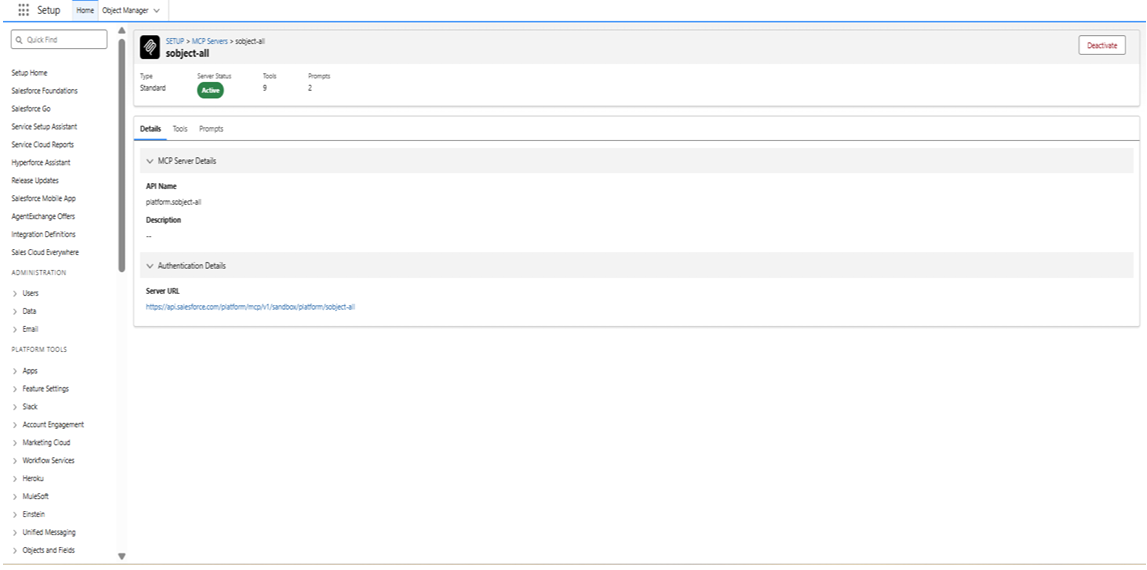
After activating, stay on the sobject-all server detail page and locate the Server URL field. For a Sandbox org, the URL will look like:
https://your-org.sandbox.my.salesforce-apis.com/platform/mcp/v1/sandbox/platform/sobject-all
Copy this URL and save it — you will need it when connecting to Ask the Genie.
Make sure you copy the correct URL:
For Sandbox, the URL will contain sandbox in the address. For Production, the URL will not contain sandbox.
Verify server details
Before moving on, confirm the following on your MCP Server:
| Field | Expected value |
|---|---|
| Server Name | sobject-all |
| Type | Standard |
| Server Status | Active ✅ |
| Tools | 9 |
| URL Copied | ✅ Yes |
Available hosted MCP servers
This is the list of hosted MCP servers and their uses, so you can use any server as required.
| Server Name | Description / What it does | What is needed to activate |
|---|---|---|
platform/sobject-all | Provides full CRUD operations (Create, Read, Update, Delete) and query access for Salesforce objects. | Enable MCP Service in Salesforce Setup, configure the OAuth app, and assign proper object permissions. |
platform/sobject-reads | Read-only access to Salesforce data using queries and searches. | Enable MCP Service and provide read permissions for required objects. |
platform/sobject-mutations | Allows creating and updating records, but does not allow delete operations. | Enable MCP Service and grant create/edit permissions on objects. |
platform/sobject-deletes | Allows deletion of Salesforce records. | Enable MCP Service and grant delete permissions carefully. |
platform/api-catalog | Exposes Salesforce REST APIs as MCP tools for external AI or integrations. | Enable API access, OAuth configuration, and API permissions. |
platform/flows | Allows Salesforce Flows to be executed through MCP. | Active Flow(s), MCP enabled, and Flow access permissions. |
platform/invocable-actions | Exposes Apex Invocable Methods to AI agents and external systems. | Deploy Apex classes with @InvocableMethod and assign Apex access. |
platform/data-360 | Enables querying unified customer data from Data Cloud / Data 360. | Salesforce Data Cloud license and Data 360 setup enabled. |
analytics/tableau-next | Gives access to Tableau dashboards, KPIs, and analytics via MCP. | Tableau Next enabled and analytics permissions configured. |
custom-mcp-server | Custom-built MCP server for company-specific business logic or APIs. | Custom development, deployment, OAuth setup, and endpoint configuration. |
Configure OAuth & OpenID Connect
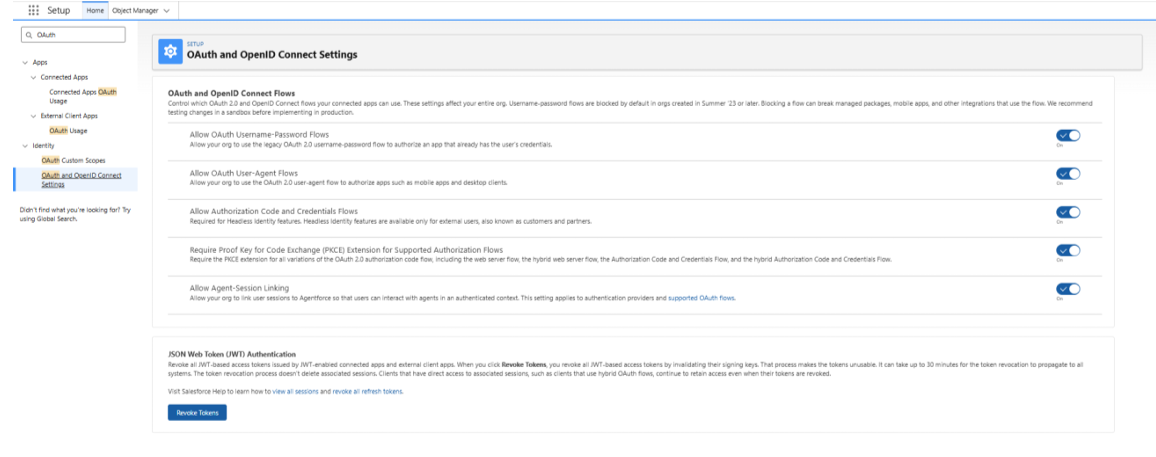
- In the Salesforce Setup page, use the Quick Find search box and type OAuth.
- Under the Identity section, click OAuth and OpenID Connect Settings.
- You will now see the OAuth and OpenID Connect Flows settings page.
Enable the following toggles:
| Setting | Status |
|---|---|
| Allow Authorization Code and Credentials Flows | ✅ On |
| Require Proof Key for Code Exchange (PKCE) Extension for Supported Authorization Flows | ✅ On |
Leave all other settings as they are. Changes are saved automatically — no Save button needed.
Connect to Ask the Genie
- Open Ask the Genie and sign in with your account credentials.
- Click your Profile Icon (top-right corner) and go to Settings.
- In Settings, click Integrations or Connectors from the left menu.
- Click Add Integration or Connect New MCP Server.
- Fill in the connection details:
- MCP Server URL — the hosted MCP Server URL you copied earlier (for example, the
sobject-allServer URL), or your custom hosted MCP server URL. - Client ID — paste the Consumer Key copied in Step 6.
- Client Secret — leave blank (not required as we are using PKCE).
- MCP Server URL — the hosted MCP Server URL you copied earlier (for example, the
- Click Connect or Save.
- Ask the Genie will redirect you to the Salesforce login page for authorization.
- Log in with your Salesforce credentials and click Allow to grant access.
- You will be redirected back to Ask the Genie — your Salesforce MCP Server is now connected! ✅
Verify the Connection
- After connecting, go back to the Ask the Genie chat.
- Type a test message such as: “Show my Salesforce org info.”
- Ask the Genie should respond with your Salesforce user details — this confirms the connection is working correctly. ✅
Using Ask the Genie
After setup is complete, users can begin asking questions using natural language.
Sales pipeline questions
- Which opportunities are closing this month?
- Show my top open opportunities.
- Summarize my sales pipeline.
- Which opportunities have had no activity for 30 days?
Account & contact questions
- Find contacts associated with Account X.
- Show recent activity for Account Y.
- List recently created leads.
Business knowledge questions
- Search records related to customer onboarding.
- Find cases discussing pricing changes.
- Summarize customer feedback from multiple sources.
Example AI response
Ask the Genie retrieves information from connected systems and generates a consolidated answer. The response may include opportunity information, account and contact details, pipeline insights, record references, and source citations.
Citations & Sources
Ask the Genie provides citations whenever source information is available. Sources may include:
- Salesforce CRM
- SharePoint documents
- Emails
- Meeting transcripts
- Slack conversations
Disconnecting Salesforce
Disconnecting Salesforce prevents Ask the Genie from accessing new Salesforce data.
Existing indexed information may remain available according to your organization's data retention settings.
Disconnect from Ask the Genie
- Navigate to Connectors.
- Locate Salesforce.
- Click Disconnect.
- Confirm the action.
Revoke access in Salesforce
To completely revoke Ask the Genie's access from the Salesforce side:
- Log in to Salesforce and open Setup.
- Use Quick Find to open External Client App Manager.
- Locate your Salesforce MCP Server app.
- Deactivate or delete the app, or revoke its tokens from OAuth and OpenID Connect Settings.
After revoking access:
- Salesforce access permissions will be revoked.
- Future synchronization will stop.
- New CRM data will no longer be available in Ask the Genie.
- Existing indexed content may be retained according to organizational retention policies.
- Previously generated conversations and insights may remain accessible unless deleted by an administrator.
Privacy & Security
Ask the Genie is designed with enterprise security and privacy considerations. For additional information, refer to:
- Privacy Policy
- Terms of Service
- Security Documentation
- GDPR Compliance Information
Troubleshooting
| Issue | What to check |
|---|---|
| Salesforce does not appear connected | Verify that authorization was completed successfully. Confirm the correct Salesforce environment (Sandbox or Production) was selected. Reconnect the integration if necessary. |
| Redirect / callback error | Confirm the Callback URL in the External Client App exactly matches https://api.askthegenie.ai/api/v1/mcp-connectors/salesforce/callback — no trailing slash and no extra spaces. |
| No CRM results returned | Verify that the MCP Server (sobject-all) is Active, that the required OAuth scopes were granted, and that the connecting user has object permissions. |
| Invalid MCP Server URL | Confirm you copied the correct URL — it must contain sandbox for a Sandbox org and must not contain sandbox for a Production org. |
| Access issues | Contact your Ask the Genie administrator if you experience permission-related issues. |
Support
For assistance with installation, configuration, or troubleshooting: