

Overview
This guide explains how to connect Jira Cloud with Ask the Genie, complete the one-time Atlassian administrator authorization, and finish the user login flow.
Once connected, users can:
- Search and retrieve Jira work items using natural language.
- Ask questions across Jira alongside your other connected business systems.
- Receive AI-generated answers with source citations.
- Access Jira data from a single unified interface.
Prerequisites
Before connecting Jira Cloud to Ask the Genie, ensure the following are in place:
| Requirement | Details |
|---|---|
| Ask the Genie | Active account |
| Jira Cloud | Active Jira Cloud site |
| Administrator | Atlassian Organization Admin |
| Time | ~2 minutes |
Connect Jira from AskTheGenie
Follow these steps to start the Jira Cloud connection.
Open the Ask the Genie Dashboard
Sign in to Ask the Genie and open your dashboard.
Navigate to Settings → Connectors
Open Settings and select Connectors.
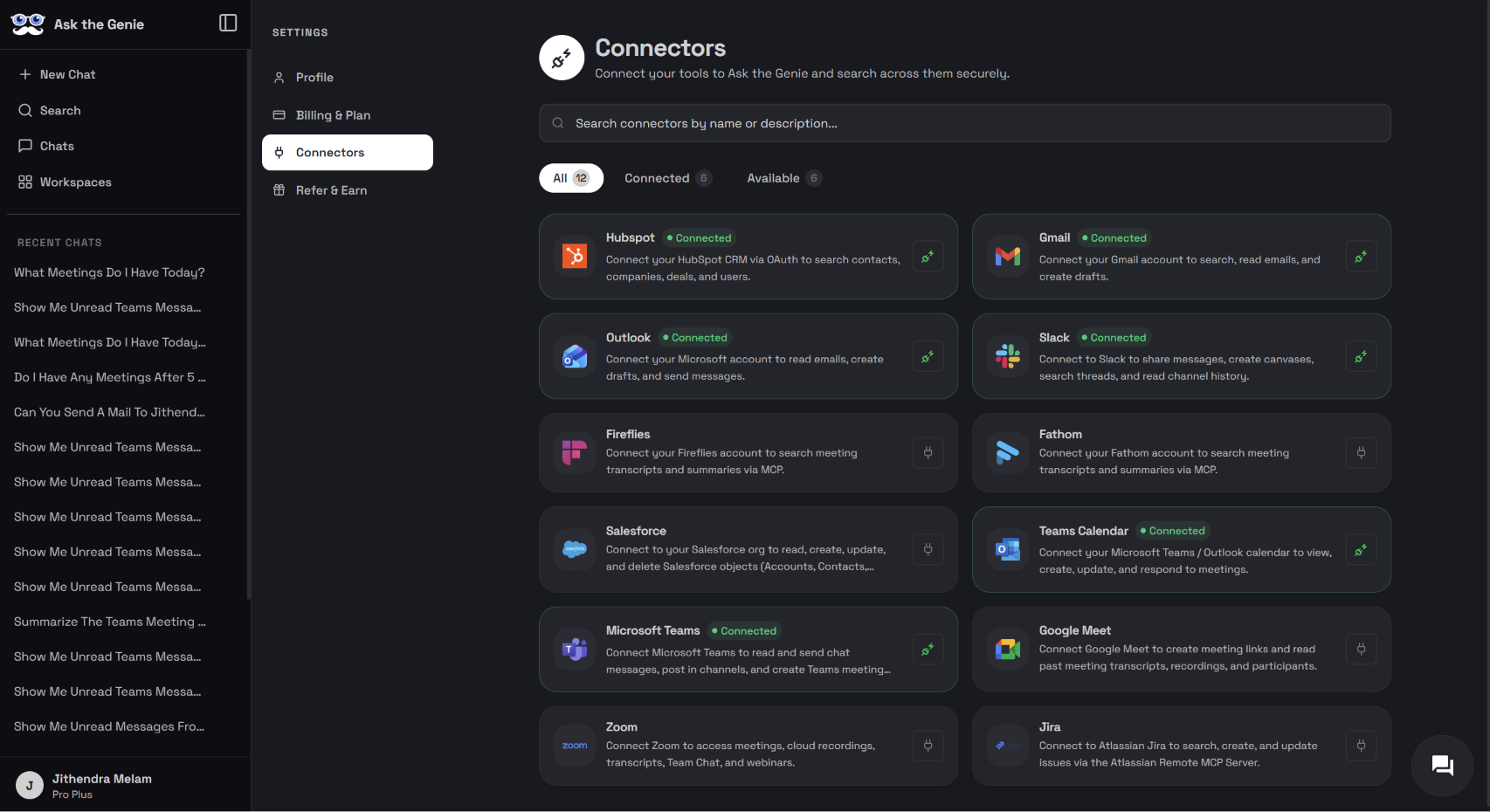
Locate the Jira connector and click Connect
Find the Jira connector in the list and click Connect.
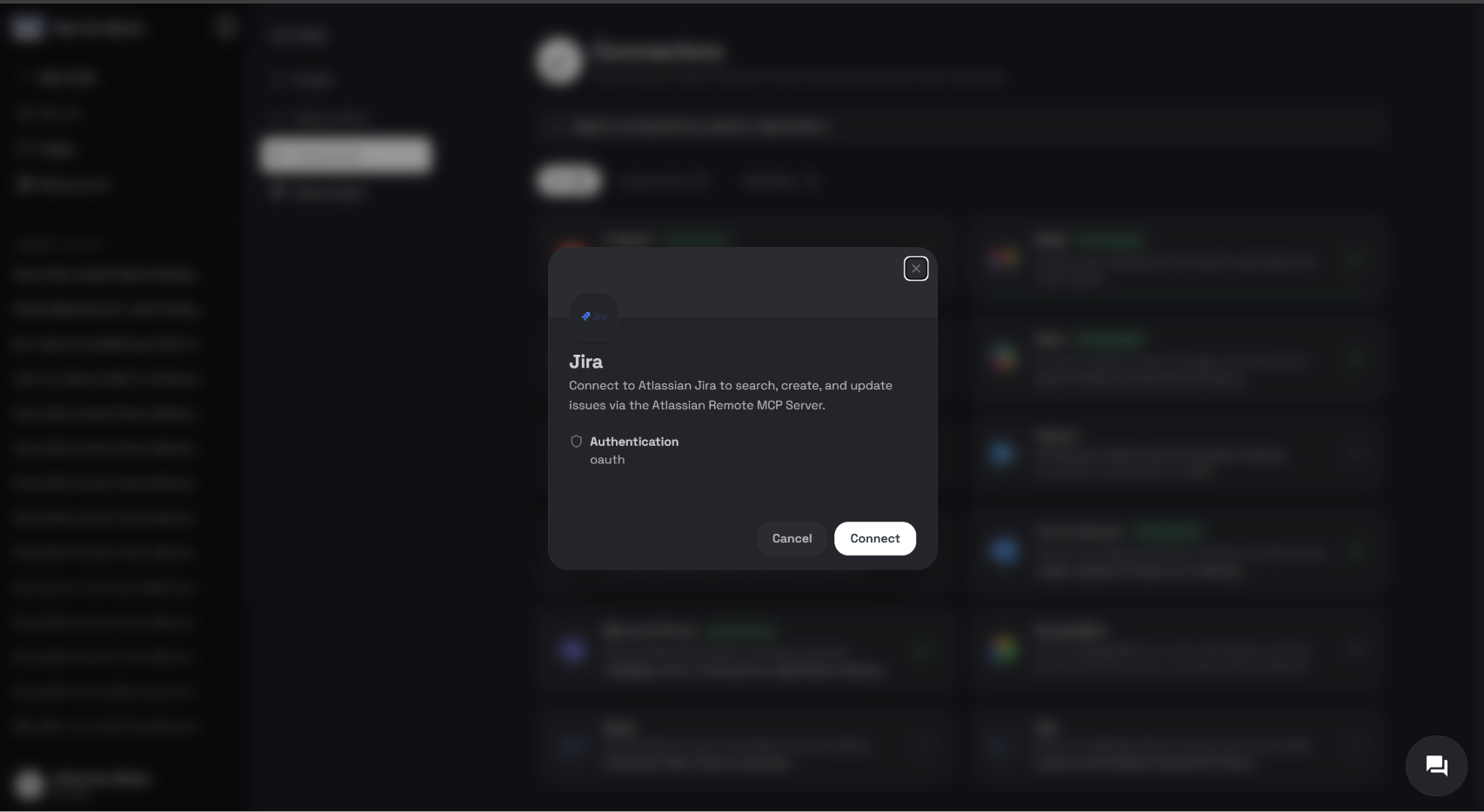
Redirect to Atlassian login
You will be redirected to Atlassian to sign in and authorize access.
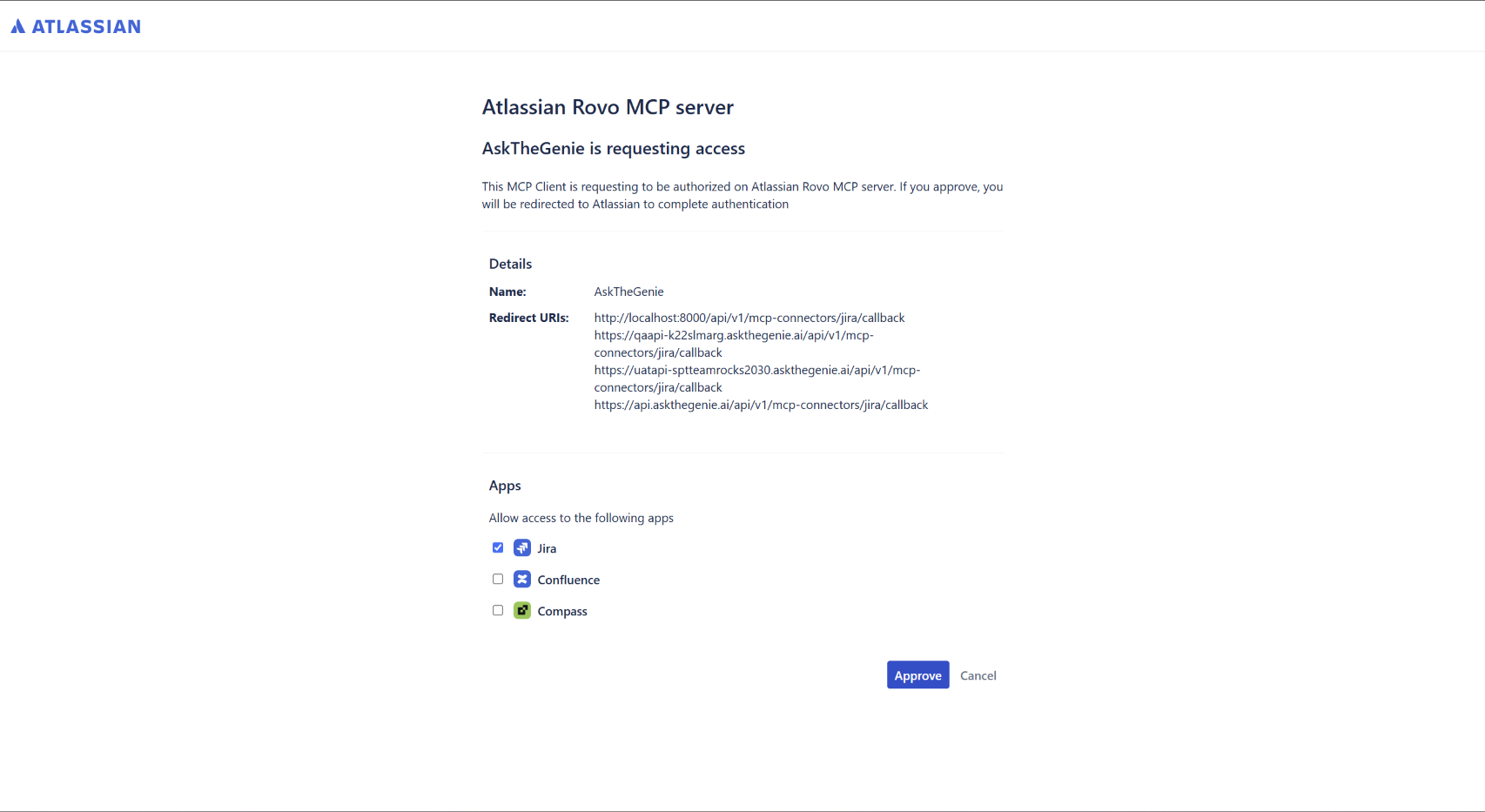
Administrator Authorization
If your organization has not yet authorized Ask the Genie, Atlassian displays an authorization message. An Atlassian organization administrator must complete the one-time setup in the next section before the connection can proceed.
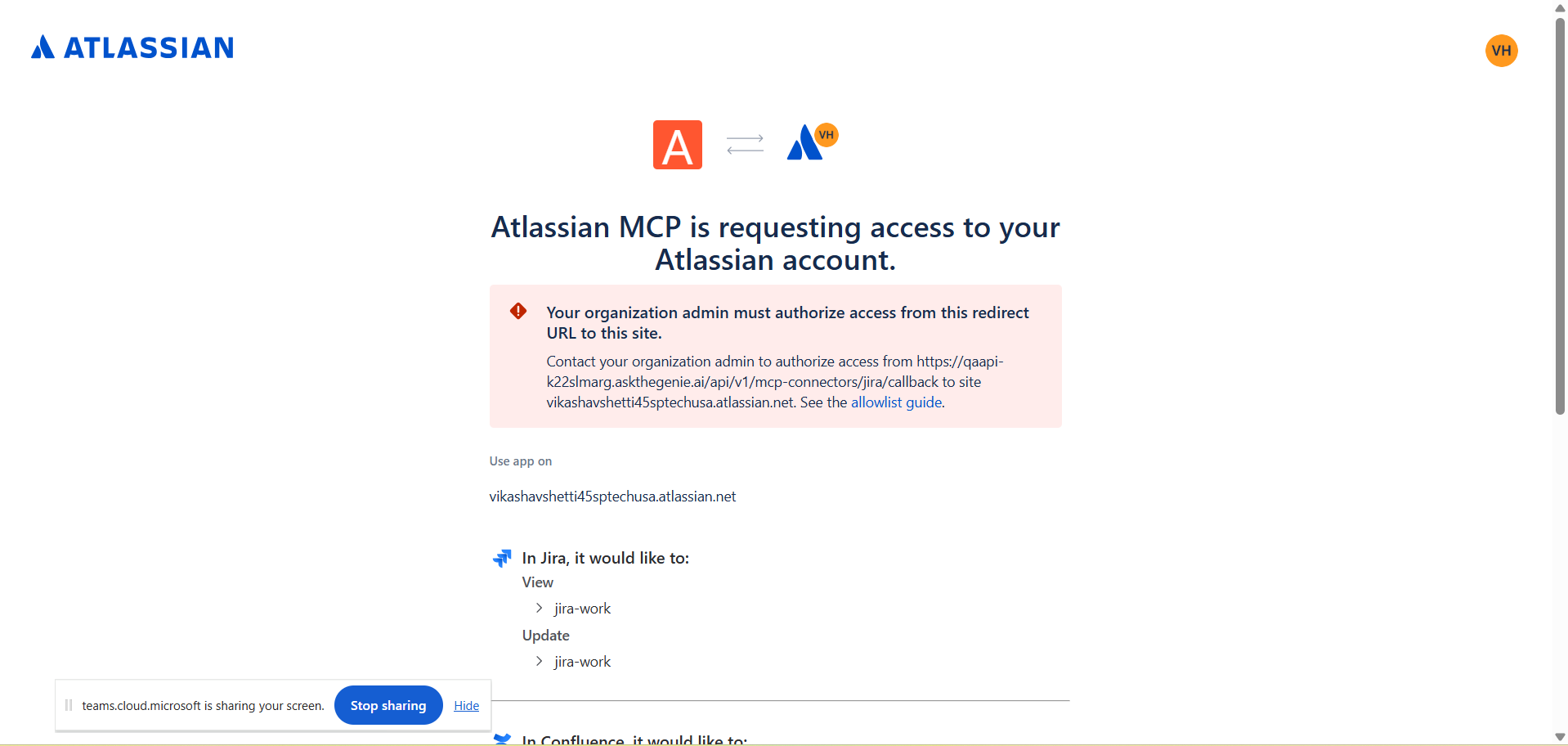
Administrator Setup
An Atlassian organization administrator completes the following one-time steps.
Sign in to the Atlassian admin console
Log in to admin.atlassian.com.
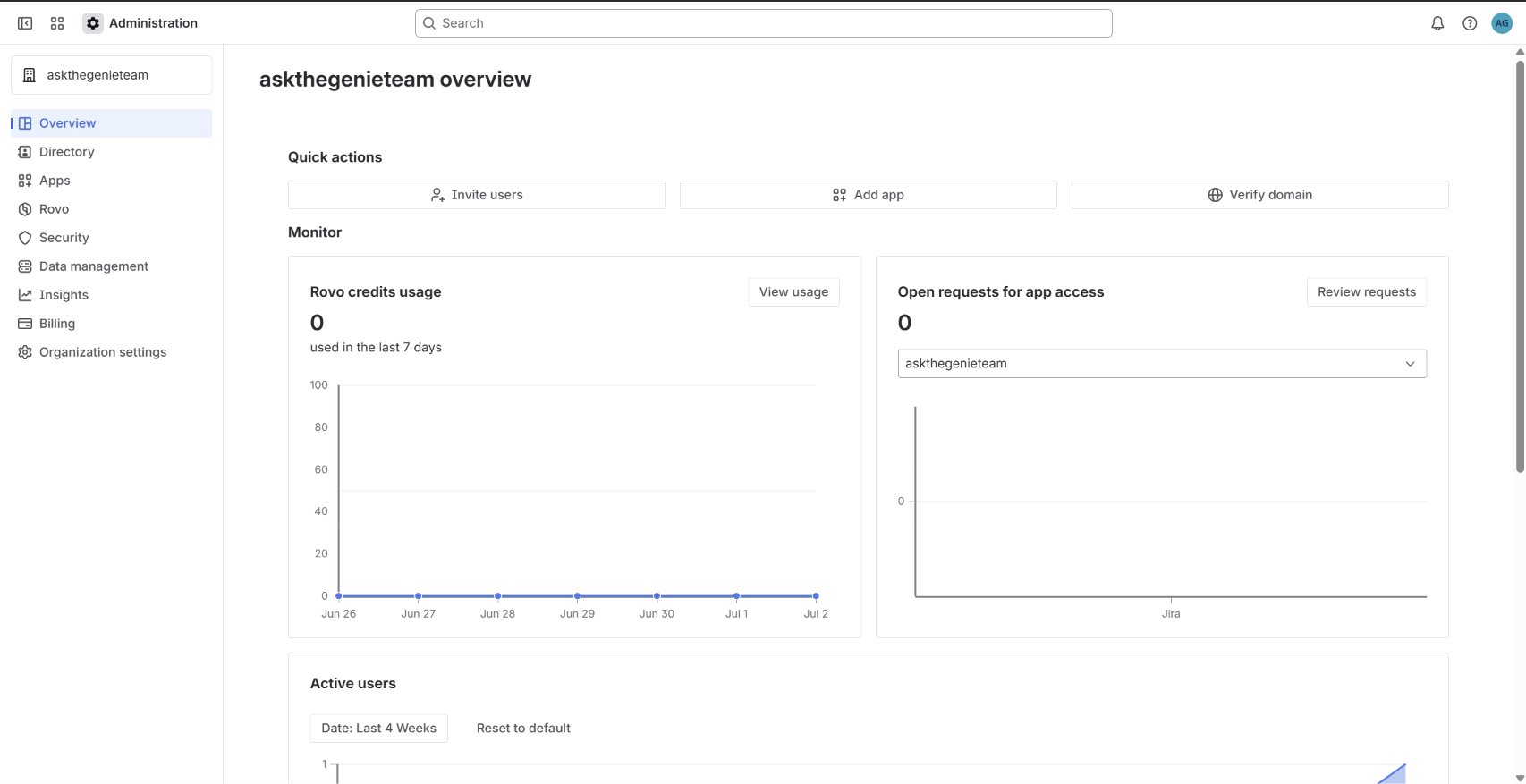
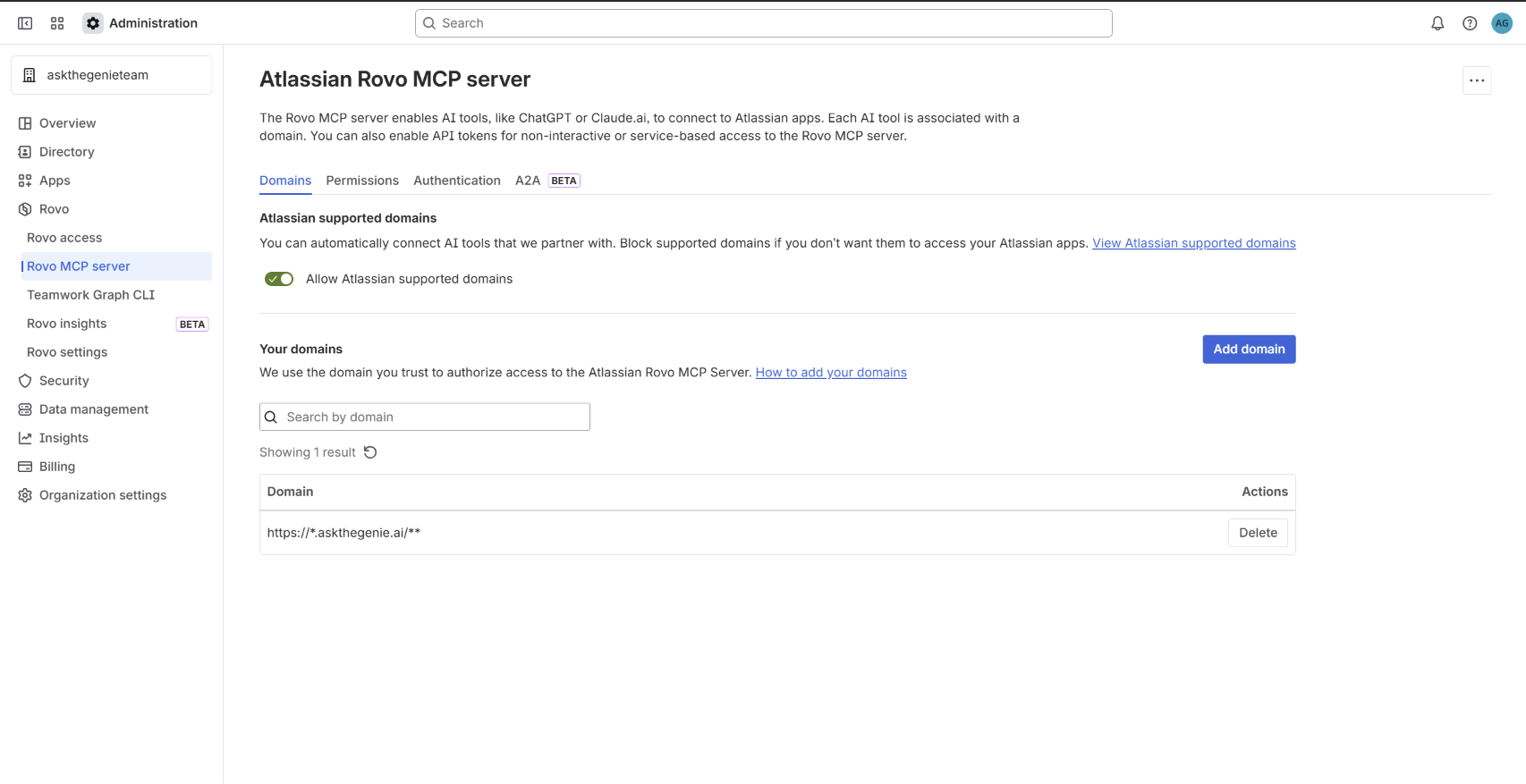
Open Rovo → Rovo MCP Server → Domains
Navigate to Rovo → Rovo MCP Server → Domains.
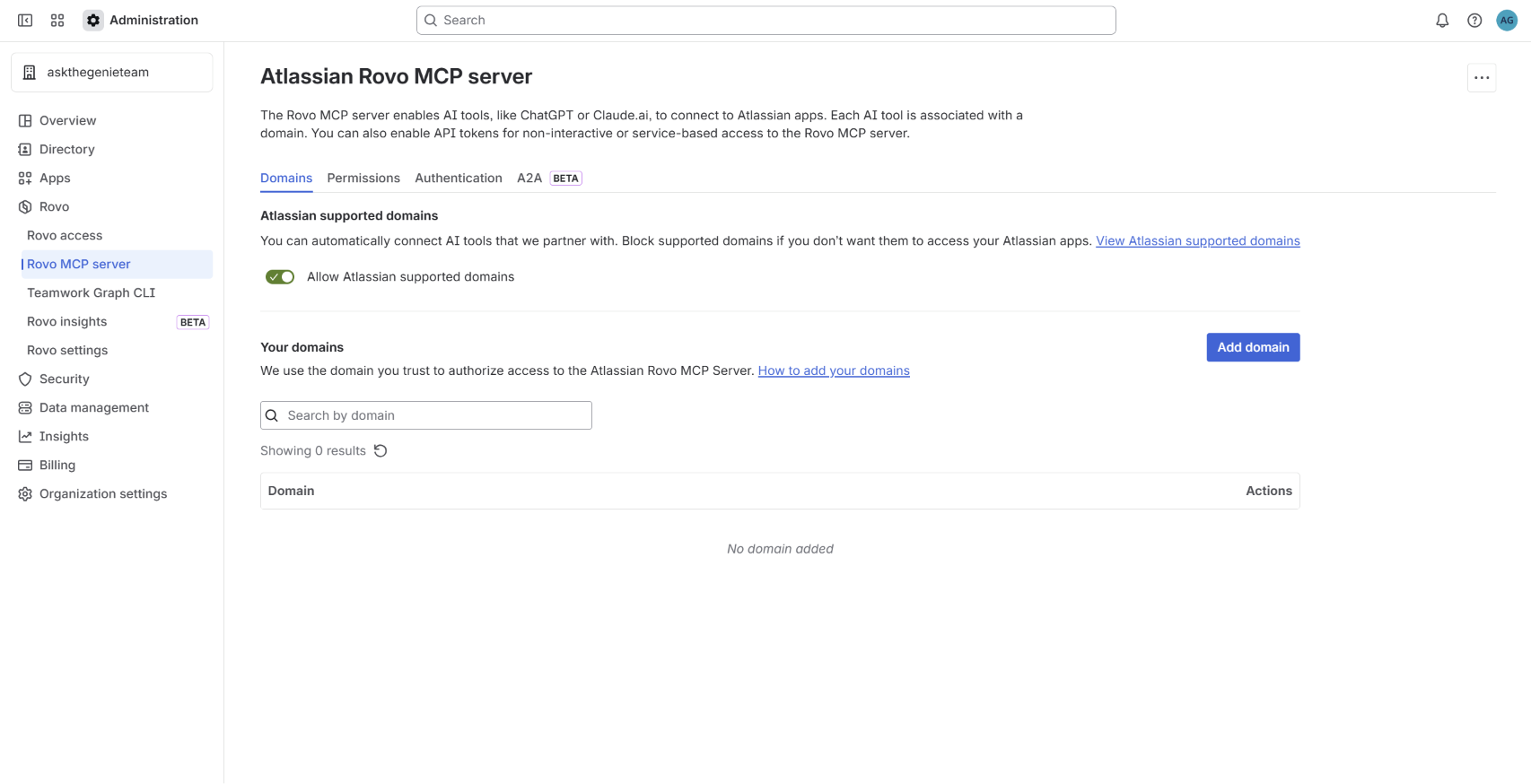
Click Add Domain
Click Add Domain to register a new allowed domain.
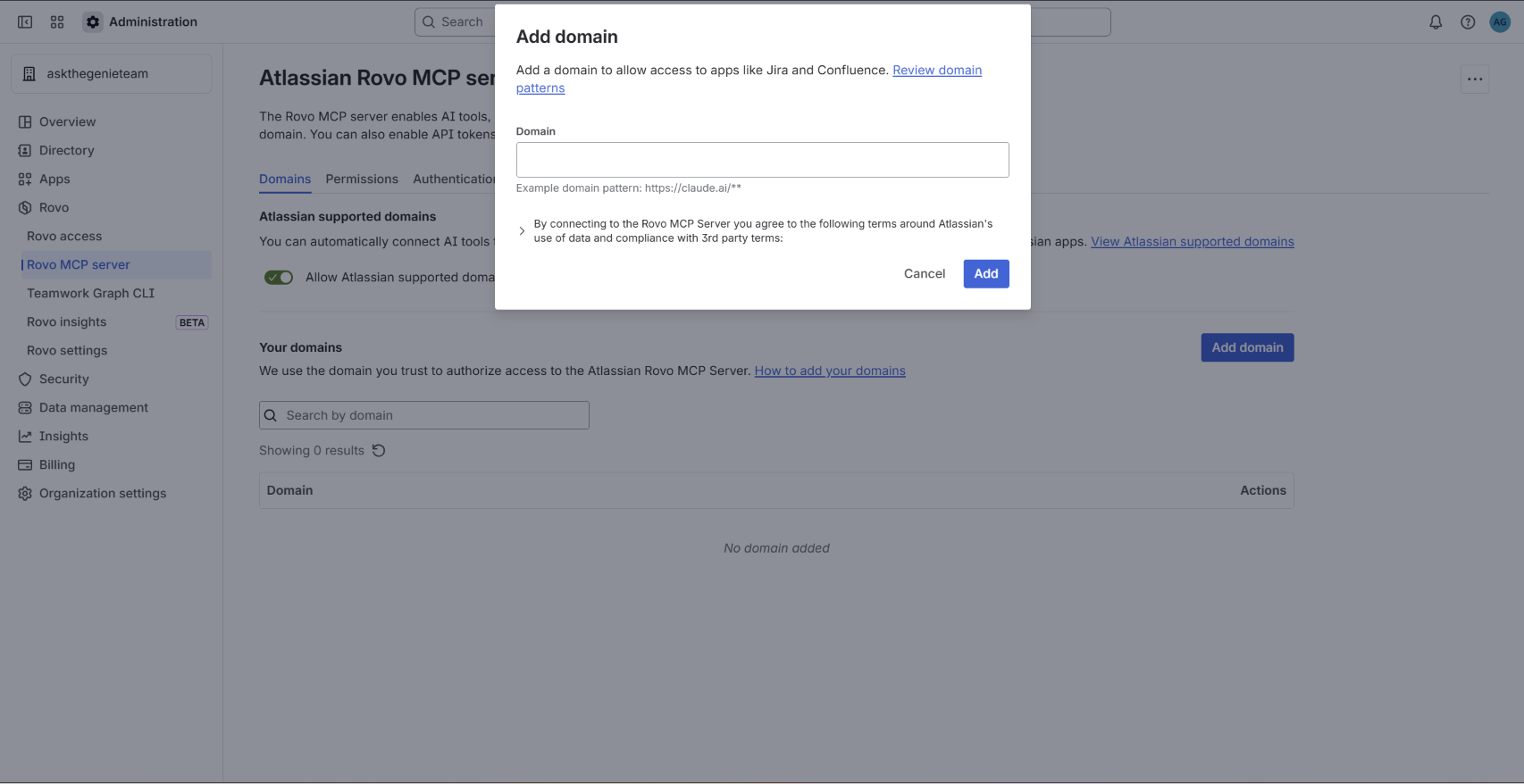
Enter the Ask the Genie domain
Enter the following domain pattern:
https://*.askthegenie.ai/** |
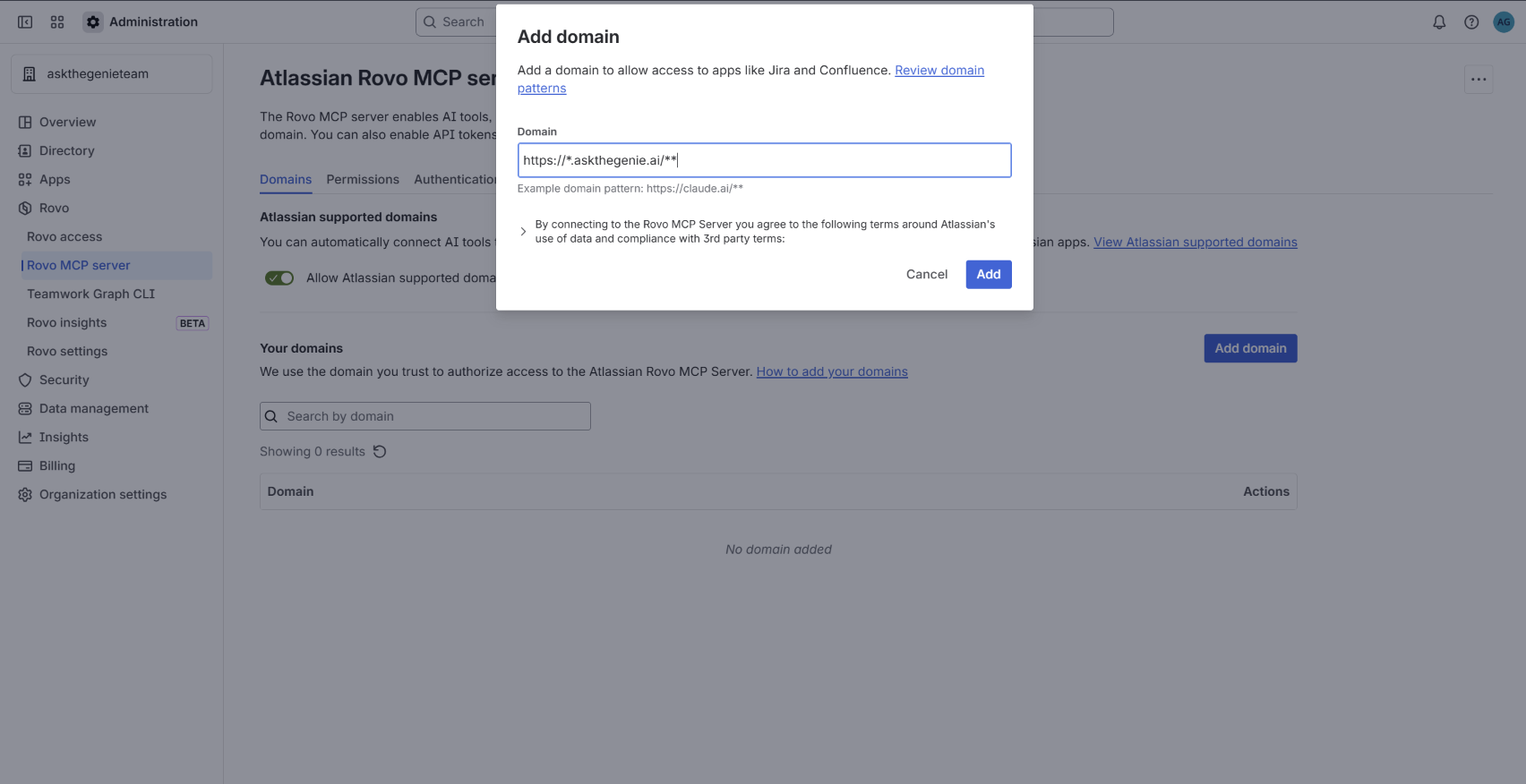
Verify the domain is added
Confirm the domain appears in the list and was added successfully.
Complete the Connection
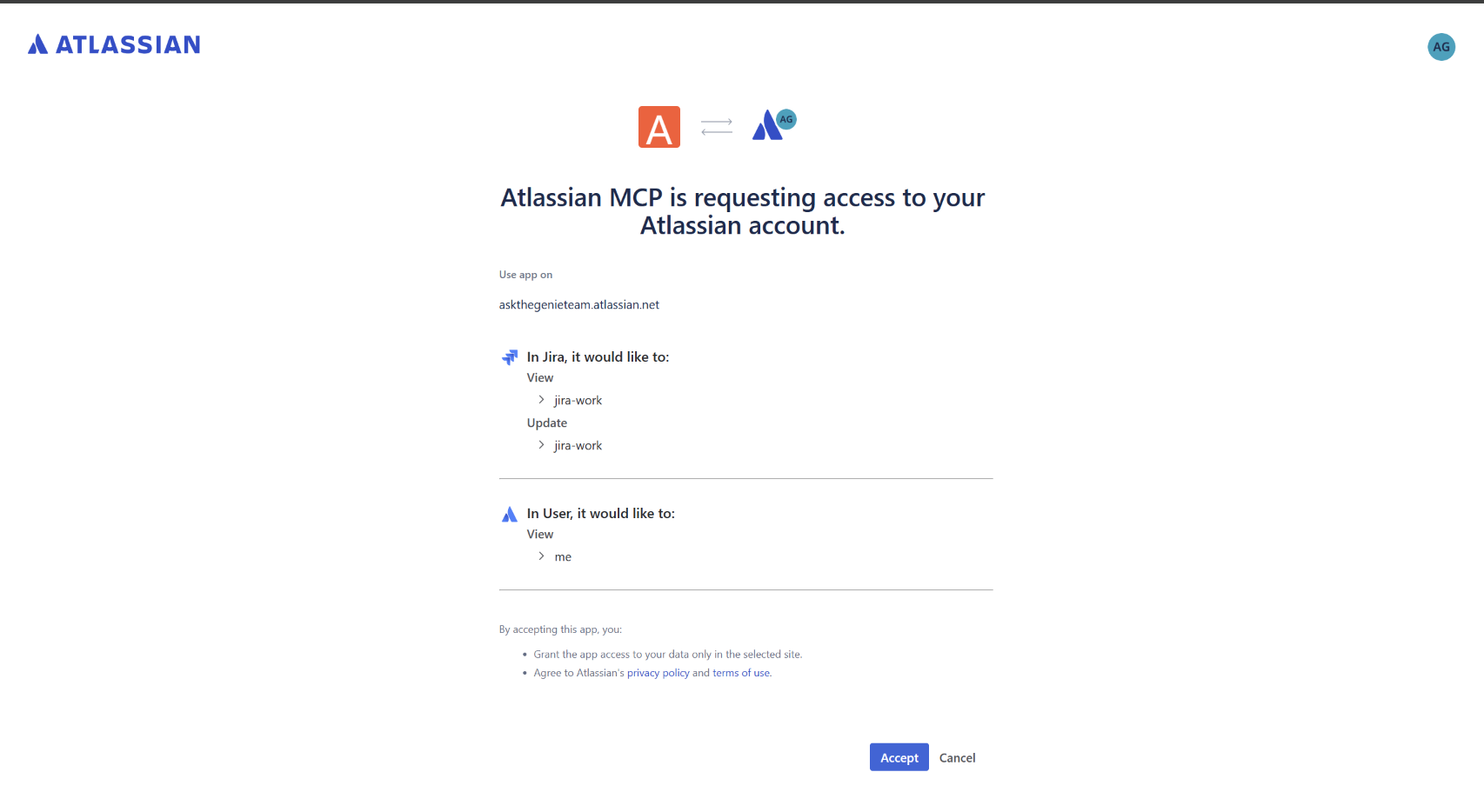
- Return to Ask the Genie and click Connect Jira again.
- Review the requested permissions and click Accept.
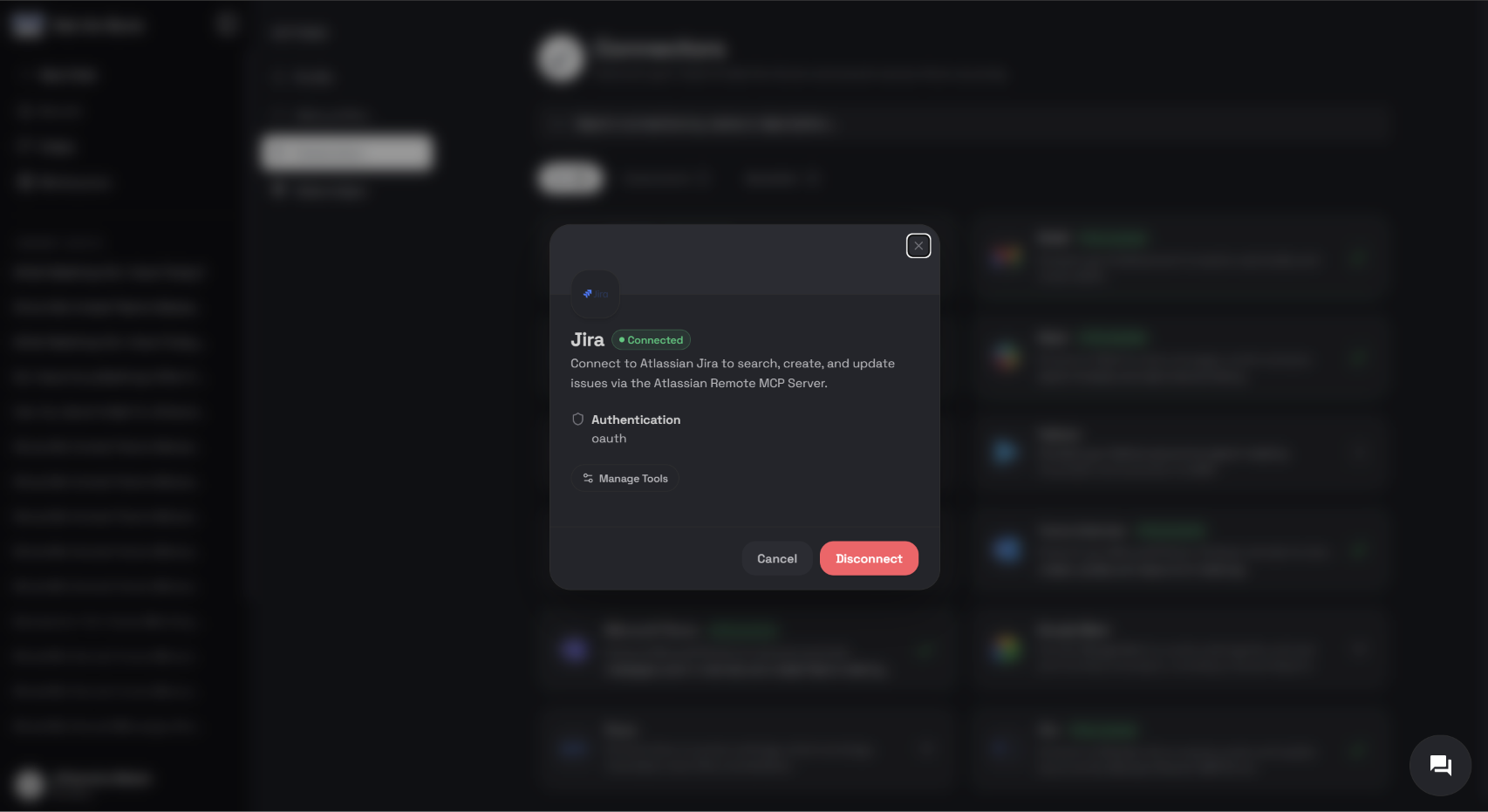
Verify Connection
The Jira connector should display Connected, and users can begin using Jira features from Ask the Genie.
Troubleshooting
| Issue | What to check |
|---|---|
| Administrator authorization required | Verify the callback URL includes https://*.askthegenie.ai/**, then retry using a new browser session. |
| Access denied | Grant the user a Jira license and access to the Jira site. |
| IP allowlisting | Ensure requests originate from approved IP addresses. |
Permissions Requested
| Permission | Purpose |
|---|---|
| Jira Read | View work items |
| Jira Write | Update work items |
| User Identity | Authenticate the user |
Support
For assistance with installation, configuration, or troubleshooting: